
SDK Code Snippets
SDK code snippets help you integrate API requests directly into your application without writing requests from scratch. Each endpoint in the API Reference includes its own SDK example.
Currently, Python SDK snippets are available for all supported endpoints.
Where SDK Snippets Appear on Endpoint Pages
To view SDK code for an endpoint:
- Open the API Reference
- Select a section (for example, Organization Management)
- Click any endpoint (for example, Get Organization)
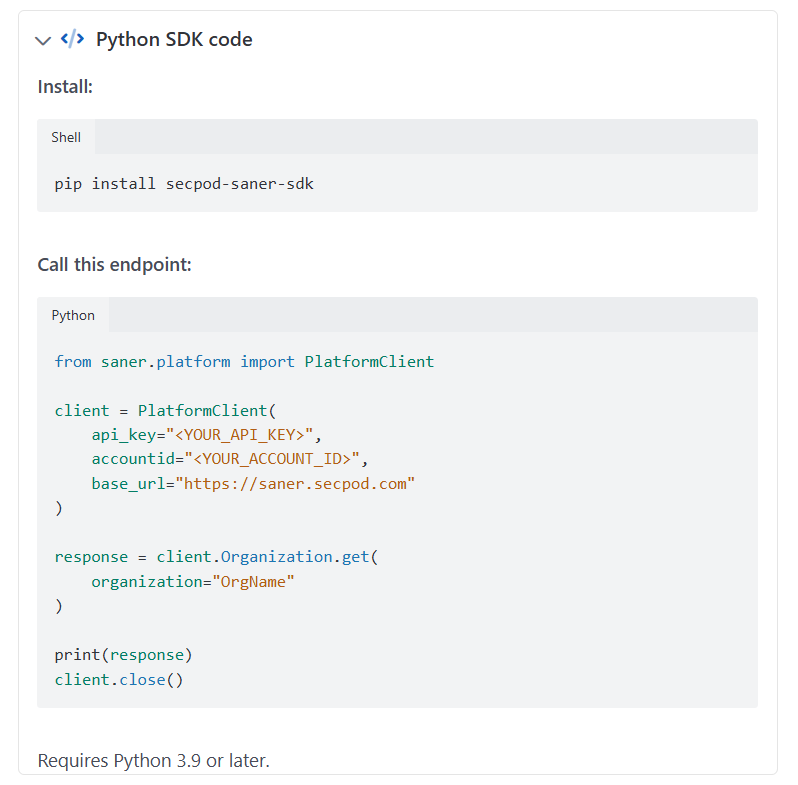
- Scroll to the Python SDK code section, just below the endpoint description
- Click it to expand the panel
The panel will display the install command and the SDK code specific to that endpoint.
Each API reference page provides its own corresponding SDK example.
Copying SDK Code Correctly
To copy the SDK example:
- Click Using the Python SDK to expand the section
- Locate the code snippet under Call this endpoint
- Click the Copy button
- Paste the code into your local Python script or project
Update placeholder values such as:
- YOUR_API_KEY
- YOUR_ACCOUNT_ID
before running the script.
Running the SDK Snippet Locally
Before executing the SDK example:
-
Install the SDK using the command shown under Install in the accordion:
pip install secpod-saner-sdk -
Paste the copied code into a Python file
-
Replace placeholder credential values with your actual credentials
-
Run the script using:
python filename.py
The script will execute the API request and print the response.
Using Try It Alongside SDK Snippets
The Using the Python SDK section is independent of the request panel on the right. Expanding it to copy SDK code does not change or disable the Try It button, you can still select any language (Shell, Node, Ruby, PHP) in the request panel and click Try It to execute a live request, regardless of whether the SDK section is expanded.
Use the SDK section specifically for copying integration-ready code into your own project. Use the request panel's Try It button to test a request directly from the documentation.
Common Mistakes to Avoid
- Forgetting to replace placeholder credential values
- Not installing the
secpod-saner-sdkpackage before running the script - Copying code from the request panel instead of the Using the Python SDK section, the request panel's snippets are raw HTTP calls, not SDK code
- Using an incorrect base URL or account ID
- Running the script without valid authentication credentials
Following these steps ensures successful execution of SDK-based API requests.
Updated 11 days ago